Segmentation Wizard Interface
Dragonfly’s Segmentation Wizard provides an easy-to-use, guided workflow for implementing powerful deep learning and classical machine learning segmentation of multi-dimensional images. Just some of the many key features and benefits of the Segmentation Wizard are listed below.
- Automatically splits available data into Training, Evaluation, and Test sets.
- Works on frames that are created automatically on the visible part of the data.
- Users apply their specific knowledge to identify features of interest by labeling a limited subset of the image data that is defined by frames. Advanced knowledge of machine learning and deep learning algorithms is not required.
- Direct and quick feedback with previews of model predictions. New frames can be filled automatically with the best model prediction, based on the highest-ranked prediction.
- Models can be fine-tuned by adding additional training data to problematic regions.
Right-click the image data you need to segment in the Data Properties and Settings panel and then choose Segmentation Wizard in the pop-up menu to open the Segmentation Wizard context, shown below. The workspace includes a large views area in which you can label the voxels within a frame and preview model predictions, as well as a panel on the right side that include the Input, Models, and Settings tabs. Tools to adjust views and label classes are available on the panels on the left side.
Segmentation Wizard interface
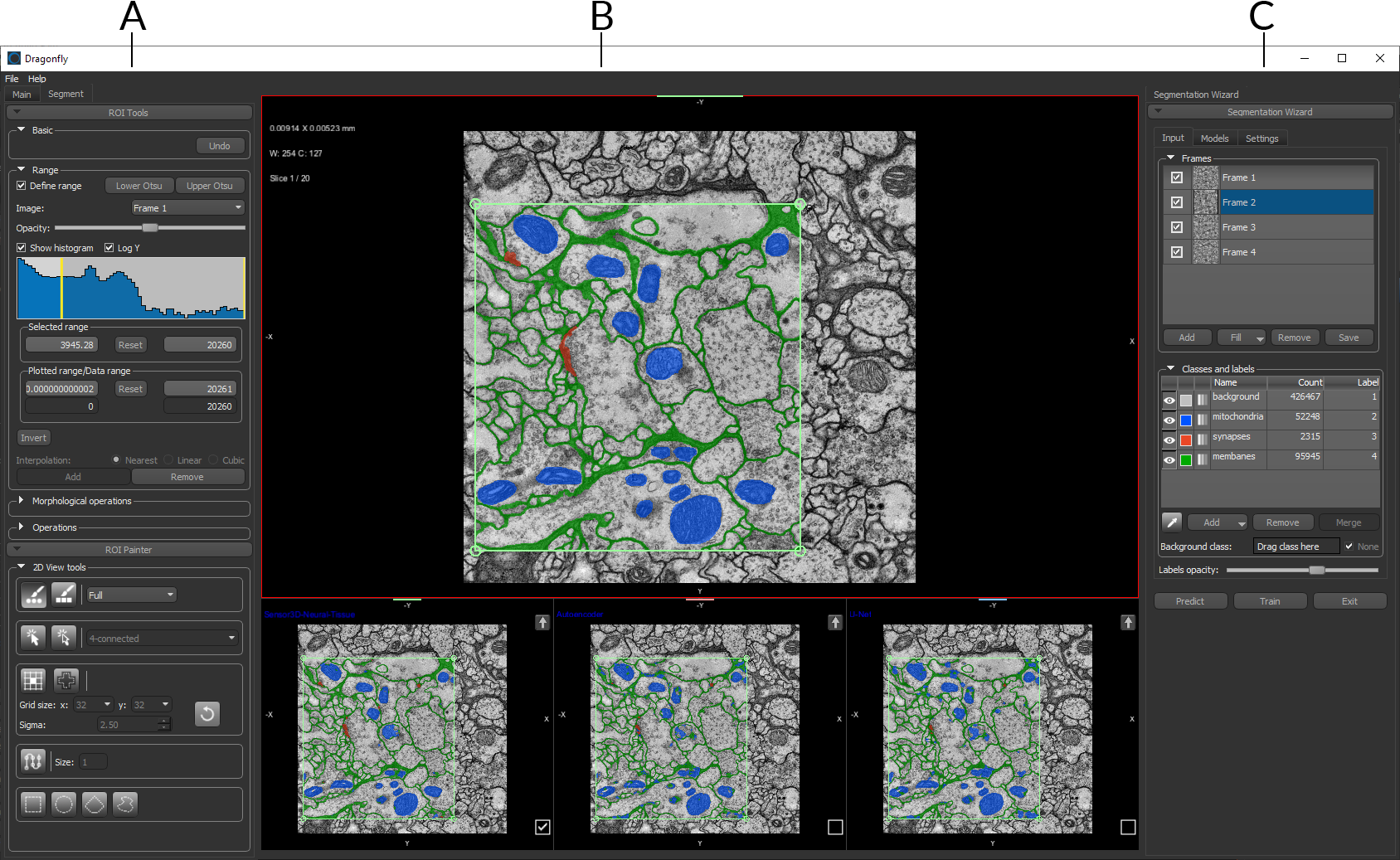
A. Tools B. Workspace views C. Segmentation Wizard panel
 Tools
Tools
The tools on the left sidebar for manipulating views, adjusting window leveling, and labeling are arranged on tabs — Main and Segment — for easy access.
Main… The tools on the Main tab let you manipulate views and adjust window leveling (see Using the Manipulate Tools and Window Leveling).
Segment… You use the ROI Painter tools and the ROI Tools to label classes for model training (see Working with the ROI Painter Tools in 2D Views, and ROI Tools).
Workspace Views
Views of the selected dataset(s) are arranged in the workspace so that an image plane view occupies two-thirds of the workspace and up to three model prediction views share the bottom third.
Workspace views
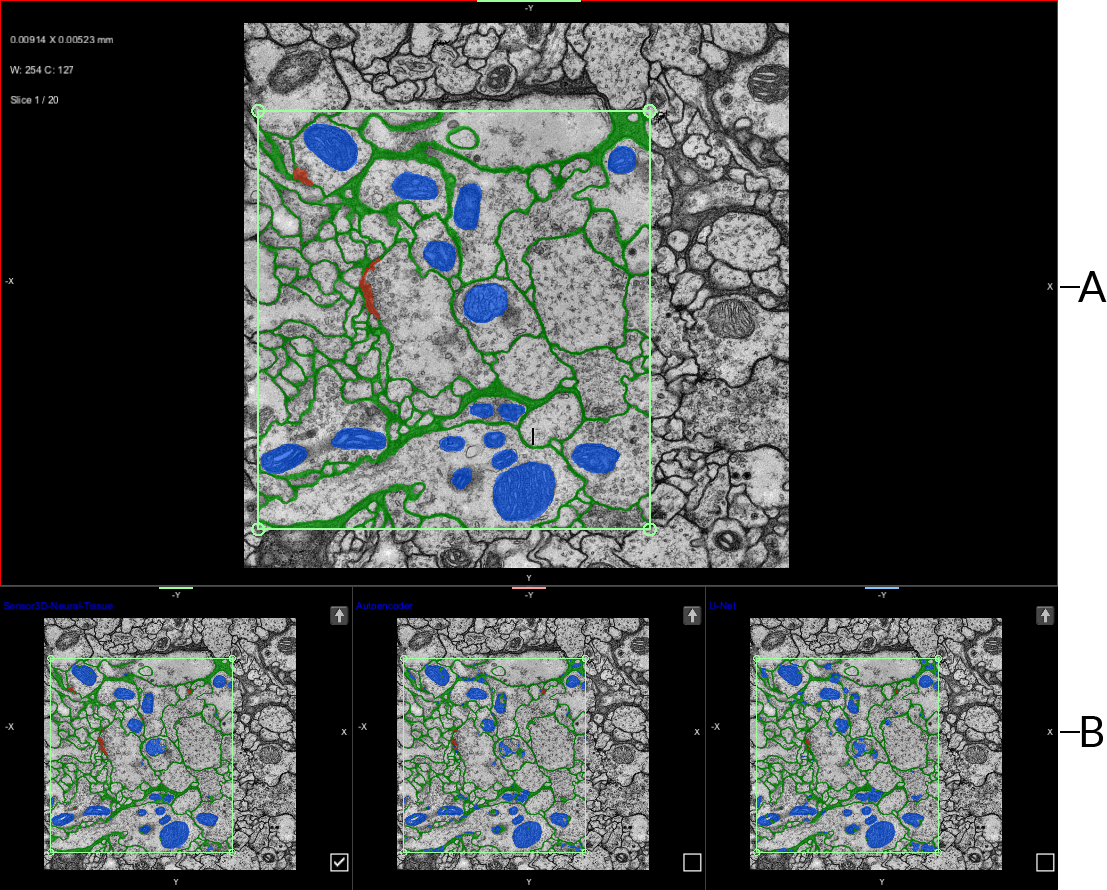
A. Working view B. Predictions
Working view… The working view is where you label features of interest for training models. You can use any of the tools on the ROI Painter panel to label your classes (see Working with the ROI Painter Tools in 2D Views), as well as apply the operations available on the ROI Tools panel (see ROI Tools). You can also import multi-ROIs prepared beforehand, as well as fill frames from predictions. If you are working with multi-modality images, you can choose which images are displayed in the view.
Predictions… These views display the model prediction(s) for the current frame (see Evaluating Training Predictions).
Segmentation Wizard Panel
The panel on the right-side of the Segmentation Wizard, shown below, contains a number of tabs — Input, Models, and Settings — that you access to label frames for training, choose the model(s) you want to be trained, and set your preferences for training.
Segmentation Wizard panel
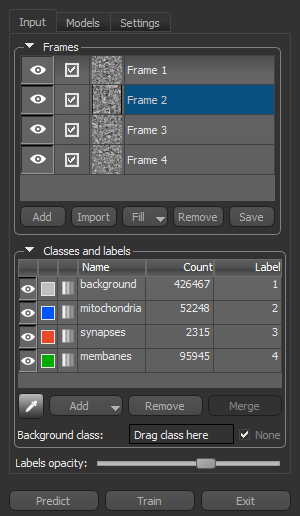
The following options are available on each tab of the Segmentation Wizard panel.
|
|
Description |
|---|---|
|
Predict |
Applies the selected model(s) to the prediction view(s). You should note that a prediction can be applied to fill a frame, either manually by clicking the Fill Frame button in a view or by right-clicking a frame and then choosing Fill Frame from Prediction. |
|
Train |
Starts the training process. |
|
Exit |
Closes the Segmentation Wizard window. |
Input Tab
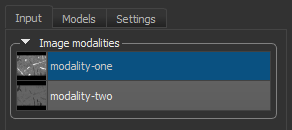
The Input tab on the Segmentation Wizard panel, shown below, provides the opportunity to add frames on the image data and to define classes. Labeling features of interest within frames can be accomplished with the ROI Painter tools. Frames can also be filled from previously segmented multi-ROIs or model predictions.
Input tab
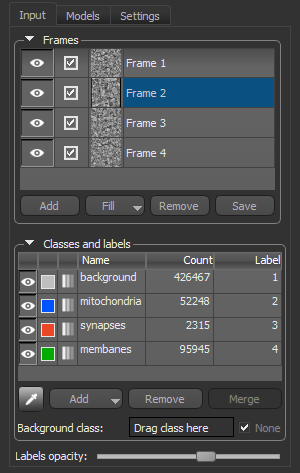
 Frames
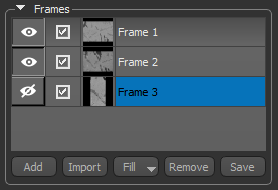
Frames define the inputs (training data) for model training. You can add as many frames as required to fully train your models.
|
|
Icon |
Description |
|---|---|---|
|
Show/hide frame |
|
Lets you show or hide a frame and the highlight applied to labeled voxels within the frame.
|
|
Include/exclude frame |
|
Lets you include or exclude a frame from the training data. |
|
Thumbnail |
|
Is a representative image of the image data within a frame. |
|
Name |
- - |
Is the assigned frame name, which can be edited. |
|
Pop-up menu |
- - |
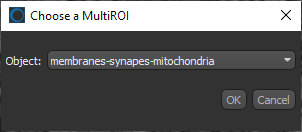
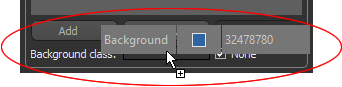
You can right-click a frame in the list and then choose the following; Fit Frame to View… Automatically centers and fits the selected frame within all views. Fill Frame from Object… Lets you fill the selected frame with the labeled voxels in a multi-ROI. You can choose the required multi-ROI in the Choose Multi-ROI dialog, shown below.
Fill Frame from Prediction… Lets you fill the selected frame as per the selected model prediction. |
|
Add |
- - |
Lets you add a frame to the current view. |
|
Import |
- - |
Lets you import saved frames. |
|
Fill |
- - |
Lets you fill all frames from either an object or from the selected model prediction. |
|
Remove |
- - |
Lets you remove the selected frame. |
|
Save |
- - |
Lets you export all frames as a multi-ROI. Exported frames will appear in the main context as a multi-ROI and are exported in the same shape as the loaded dataset(s). |



 Classes and Labels
Items related to classes and labels are available in the Classes and labels box.
|
|
Icon |
Description |
|---|---|---|
|
Show/hide class |
|
Lets you show or hide the colored highlight applied to the labeled voxels within a class. Note The opacity of the highlight is adjustable both locally and globally. |
|
Color |
|
Is the color of the highlight applied to labeled voxels in a class. You can change the color by clicking the icon and then choosing another color in the Color dialog. |
|
Local opacity |
|
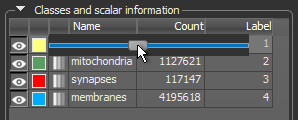
Lets you adjust the opacity of the colored highlight for each class. Click the Opacity icon in the Classes and labels list to open the Opacity slider, as shown below. You can then adjust opacity from 0 to 100 percent with the slider.
Note Whenever you change the opacity of a class, the global opacity settings will not be applied. However, you can right-click a class with an individually set opacity and then choose Use Global Opacity in the pop-up menu to reinstate the global opacity settings. |
|
Name |
- - |
Is the assigned class name, which can be edited. |
|
Count |
- - |
Is the total number of voxels labeled within a class. |
|
Label |
- - |
Is the assigned label number. |
|
Add |
- - |
Lets you add a class or multiple classes. Add Class… Automatically adds a new class. Add Multiple Classes… Lets you choose the number of classes to add. Note Modifying the number of classes while training is in progress will reset the current models. You will then have to retrain your models. |
|
Remove |
- - |
Lets you remove the selected class. Note Modifying the number of classes will reset the current models. You will then have to retrain your models. |
|
Merge |
- - |
Lets you merge selected classes. The class name and color of the merged class will be those of the class selected first and that is identified as 'A'. Note Modifying the number of classes while training is in progress will reset the current models. You will then have to retrain your models. |
|
Background class |
- - |
If enabled, labeled voxels that are removed from any class, as well as unlabeled voxels that are painted, will be added automatically to the set background class. Do the following to set a class as the background:
|
|
Labels opacity |
- - |
Lets you adjust the opacity of all colored highlights applied to labeled voxels, except for those with a local opacity applied. |


 Models Tab
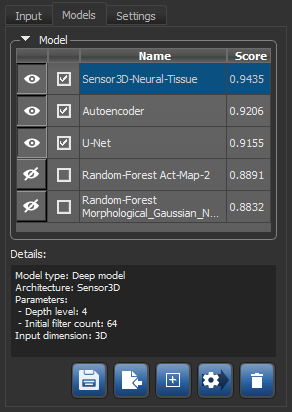
The options on the Models tab let you enable or disable models, import trained models, as well as save models for use with the Segment with AI feature (see Segment with AI).
Models tab
|
|
Icon |
Description |
|---|---|---|
|
Show/hide model prediction |
|
If set to 'visible', the model's prediction will appear in the views at the bottom of the workspace. If set to 'hidden', the model's prediction will not appear in the workspace. Note The maximum number of model predictions that can be shown at the same time is limited to three. |
|
Continue/stop model training |
|
If checked, the model will be trained when you start a new training cycle. If not checked, the model will not be trained. |
|
Name |
- - |
Is the assigned name of the model, which can be edited if required. |
|
Score |
- - |
Indicates the Dice score or precision of a model, which is a measure of the similarity of the model's prediction compared with the ground truth region. Using the same terms as describing accuracy, the Dice score is: 2 × number of true positives / 2 × number of true positives + number of false positives + number of false negatives In the above, the number of true positives is the number that the model finds, the number of positives is the total number of positives that can be found, and the number of false positives is the number of points that are negative and that the model classified as positive. Note Dice score is not only a measure of how many positives are found, but it also penalizes false positives. It is therefore more similar to precision than accuracy. The only difference is the denominator, which includes the total number of positives instead of only the positives that the model finds. Dice score also penalizes for the positives that the model could not find. |
|
Details |
- - |
Provides additional information about the selected model, such as the model type, architecture, and selected parameters. |
|
Save |
|
Opens the Save dialog, in which you can choose the models that you want to save. |
|
Import |
|
Opens the Import Model dialog, in which you can choose the model(s) that you want to import. Note Only models that have the same number of classes as in the current Segmentation Wizard session will be shown in the dialog. |
|
Generate New |
|
Opens the Model Generator dialog, in which you can generate new models (see Generating New Models). |
|
Model Generation Strategy |
|
Opens the Model Generation Strategy dialog, in which you can create new strategies, as well as edit saved ones (see Model Generation Strategy). |
|
Delete |
|
Deletes the selected model(s). |


 Settings Tab
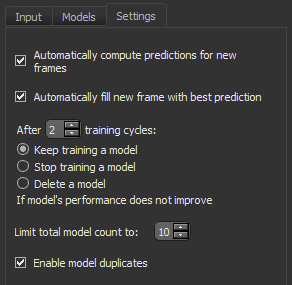
The options on the Settings tab, shown below, let you set your training preferences. You can choose to have new frames filled automatically with the best model prediction, as well as set a limit for model training.
Settings tab
|
|
Description |
|---|---|
|
Automatically compute predictions for new frames |
If selected, predictions will be computed automatically whenever you add a new frame. Automatically fill new frame with best prediction… If selected, new frames will be filled automatically with the best prediction. |
|
After a set number of training cycles… |
Lets you set a limit for model training if the model's performance does not improve after a set number of training cycles. You should note that 'training cycles' are defined as the number of times the Train button is clicked. To determine performance, the scores of the last training cycles are compared. Keep training a model… If selected, model training will be done each time that it is started, regardless of the scores of the last training cycles. Stop training a model… If selected, model training will be not start if the model's performance did not improve over the set number of training cycles. This is the default setting. In most cases, if a model's performance does not improve over a set number of training cycles, it is unlikely to improve with additional training. Delete a model… If selected, the model will be deleted if performance does not improve over the set number of training cycles. This setting can be used to help manage system resources, such as disk space. In addition, the total number of models is limited and you may decide that trying other models is a better strategy than keeping models that do not improve. |
|
Limit total model count to |
Lets you set the total number of models that can be generated or imported into a Segmentation Wizard session. |
|
Enable model duplicates |
Lets you allow or disallow model duplicates. This option should be enabled if you plan to generate multiple versions of the same model that are set with different parameters. |


